
Your Guide to My Account
MGE recently launched a new My Account experience to provide more options to manage your account and preferences. While we’ve taken steps to make the new My Account feel similar, it looks and works a little differently.
The following enhancements are now available:
- You can schedule and manage some common appointments, such as meter maintenance or replacements.
- You'll see MGE programs to help manage your usage and support renewable energy, along with options for EV drivers.
- For added security, you have the option to enable two-factor authentication when logging in.
- You can register for My Account immediately after completing a start service request online.
- If you’re having trouble paying your MGE bill, you can sign up for a Payment Arrangement in My Account instead of having to call us.
Here are some important things you need to know—and do—to ensure you have a smooth transition to the new system.
What do I need to do?
If you’re already signed up in My Account:
- You will need to use the primary email address for your MGE account instead of your username when you log in to the new My Account. Your email will replace your username moving forward.
- You also will be prompted to change your password after your first login.
Account information—like your phone number, service and billing addresses and any optional program enrollments—will automatically transfer into the new system. In addition, preferences such as Paperless Billing, AutoPay and Outage Notifications will automatically transfer.
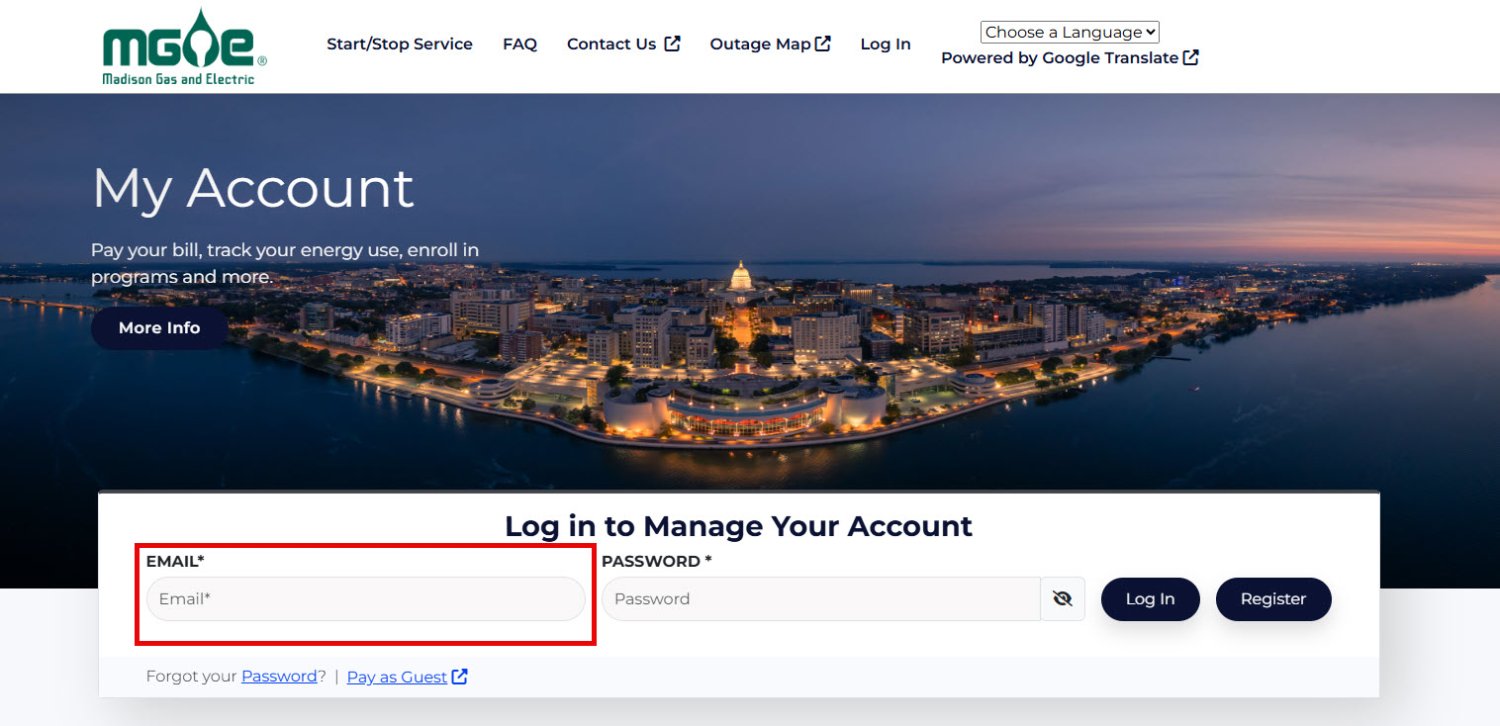
If you haven’t signed up for My Account yet:
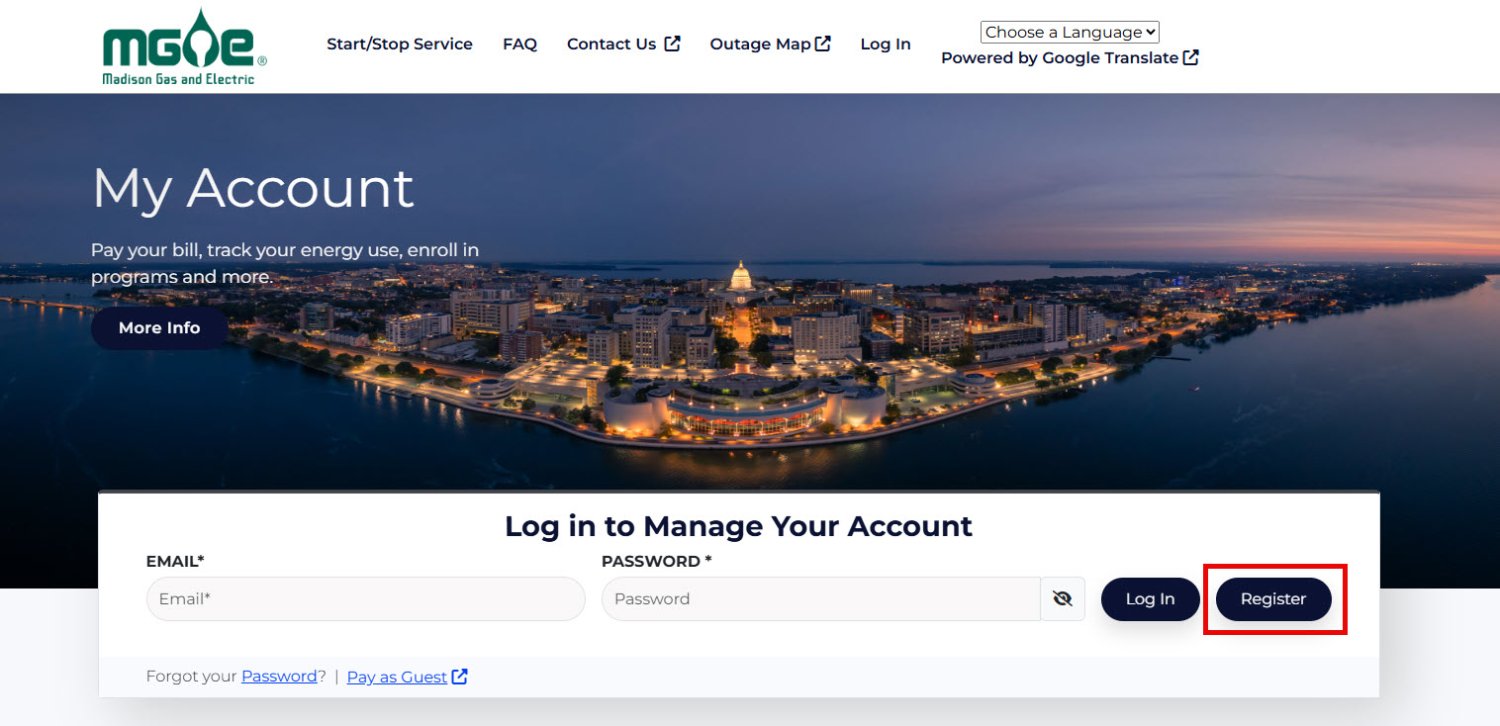
- Go to My Account and select the “Register” button. Follow the prompts to get started.
- You will need your 10-digit MGE account number and a form of identification (the last 4 digits of your social security number, driver’s license number, state ID, passport number or EIN) to create your My Account profile. Note: The form of ID you use to register must be the one you provided when you started service with MGE.
FREQUENTLY ASKED QUESTIONS
Account Access and Login
You will need to use the primary email address for your MGE account instead of your username when you log in to the new My Account for the first time.* Your email will replace your username moving forward.
You also will be prompted to change your password after your first login.
*If you don't remember your primary email address or are having trouble logging in, contact MGE Customer Services at CustomerServices@mge.com or 608-252-7000.
No. You will need to use the primary email address for your MGE account instead of your username when you log in to the new My Account for the first time.* Your email will replace your username moving forward.
You also will be prompted to change your password after your first login.
*If you don't remember your primary email address or are having trouble logging in, contact MGE Customer Services at CustomerServices@mge.com or 608-252-7000.
Everyone with access to your account will still have access; however, they will need to use their email instead of their username when logging in to the new My Account for the first time. Their email will replace their username moving forward, and they will be prompted to change their password after the first login.
Note: Accounts you share with other users will have read-only access by default in the new system. You can change their level of access in the "Shared Accounts" section of your Profile.
You may call MGE Customer Services at 608-252-7000 for assistance. You will need your 10-digit MGE account number or your 4-digit PIN assigned when you started your service with MGE.
Yes. Account information—like your phone number, service and mailing addresses, and any optional program enrollments––will automatically transfer to the new system. Preferences such as Paperless Billing, AutoPay and Outage Notifications also will automatically transfer.
Transition Information and Support
Our extensive list of Frequently Asked Questions includes guidance on the transition to the new My Account and covers a variety of topics related to the new system.
You may also chat with the MGE Virtual Assistant on mge.com for general information about My Account and MGE programs and services. Look for the chat bubble in the lower right corner of your browser window.
If you still have questions or are unable to log in, please email MGE Customer Services at CustomerServices@mge.com or call 608-252-7000 weekdays, excluding holidays.
MGE Customer Services hours will remain the same. However, we may experience higher-than-average call volumes during the transition period as customers become familiar with the new system.
Please consider allowing yourself a little extra time to complete your My Account transactions during this time, and plan for potentially longer on-hold times if you need to call Customer Services during the transition period.
We appreciate your patience and understanding.
Yes, your information will remain secure.
MGE is committed to taking reasonable steps to ensure the security of your information. To prevent unauthorized access, maintain data accuracy and ensure the appropriate use of information, we have appropriate procedures to safeguard and secure the information we collect online. All data is stored and secured with encryption on MGE systems or on systems owned by services hired by MGE.
Please see MGE’s Terms and Conditions for more information.
Yes. When logging in to the new My Account, you will have the option to enable two-factor verification by confirming a code sent by text messaging for enhanced security.
Billing and Payments
Yes, your billing history for the previous 24 months will be available in the new My Account.
Your AutoPay enrollment will automatically transfer to the new system.
Yes, your saved payment methods will transfer. You’ll be able to see and manage these in your Digital Wallet in the new system.
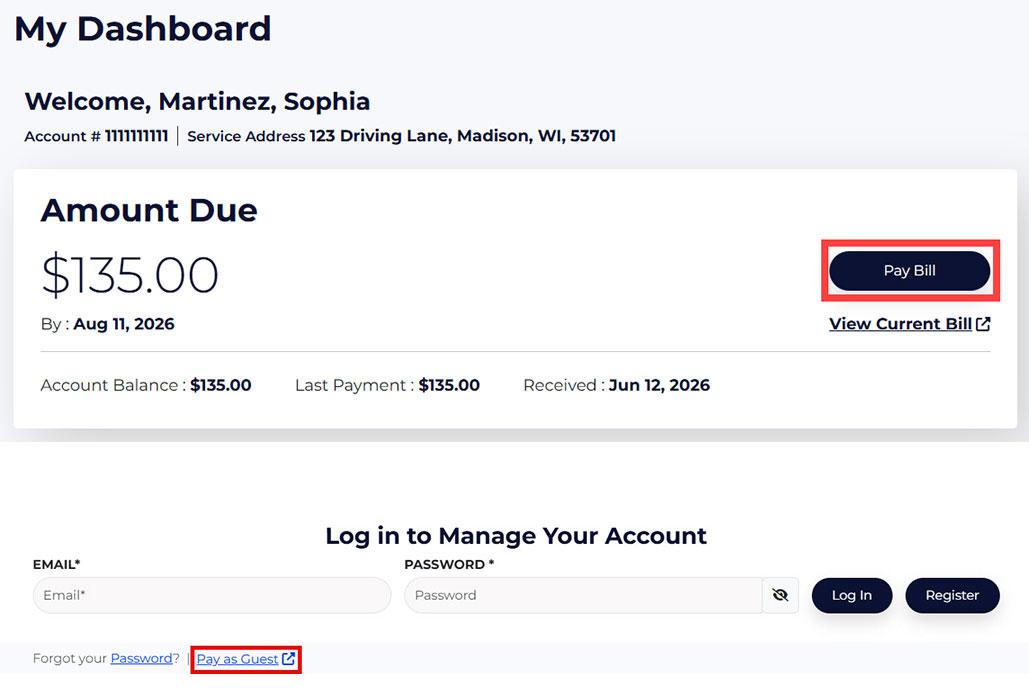
To make a payment in the new system, log in to your account and select the “Pay Bill” button on your My Dashboard page.
You may also make payments without logging in by selecting the “Pay as Guest” link on the My Account homepage. You will need your 10-digit MGE account number to use the Pay as Guest payment method.
No, there are no changes to how payments are processed.
Yes, you will continue to receive your MGE bill the same way.
If you’re enrolled in Paperless Billing, you will continue to receive an email when your electronic bill is ready to view and pay in My Account.
If you receive a paper bill in the mail, that process will be the same.
No, your MGE bill and due date remain the same.
Usage Information
You will see usage graphs displaying monthly consumption data for your electric and/or natural gas account(s). You will be able to review up to 24 months of usage history.
Yes. You will be able to review up to 24 months of past usage history in the new My Account.
Notifications and Preferences
Yes! You don’t need to take any action for your existing notification preferences.
Take these steps to update your communication and notification preferences in the new My Account:
- After logging in, go to the “Profile” option in the Dashboard tab.
- On the Profile page, you may change or update your:
- Password, language setting, two-factor verification setting, primary email address, Paperless Billing enrollment, phone number and billing address.
- This also is where you may share your account with another user if you choose to do so.
- From the Notifications page, you may update your settings for My Account notifications.
- From the Manage Outage Notifications page, you may update your settings for outage notifications.
- From the Email Subscriptions page, you may update your preferences for receiving newsletters and promotional emails from MGE.
To update your billing notifications, go to the Billing tab on your dashboard and select Paperless Billing. Then update the email address you'd like to use for Paperless Billing.
If you are currently enrolled in text and/or email notifications, you will continue to receive them. No action is needed unless you’d like to update your preferences. (See “How do I update communication preferences in the new system?”)
Program Enrollment
No, you do not need to re-enroll in any programs in which you are currently participating.
You can find program information on the My Dashboard page after logging in to your new My Account. Scroll down to “Billing Options” and “Energy Use Programs” to find programs for which you are eligible.
Programs will be listed with your current enrollment status. For programs you can sign up for in My Account, you will see an “Enroll” link under the program name. Click the “Enroll” link to learn more about the program and enroll.
For those programs you’re already enrolled in and can manage within My Account, you will see a “Manage” link under the program name. Click the “Manage” link to see your enrollment details and make changes if needed.
Note that not all programs are available for enrollment or management in My Account. To learn about all optional MGE programs—including bill and payment programs, renewable energy programs, EV programs and energy use programs—visit mge.com.
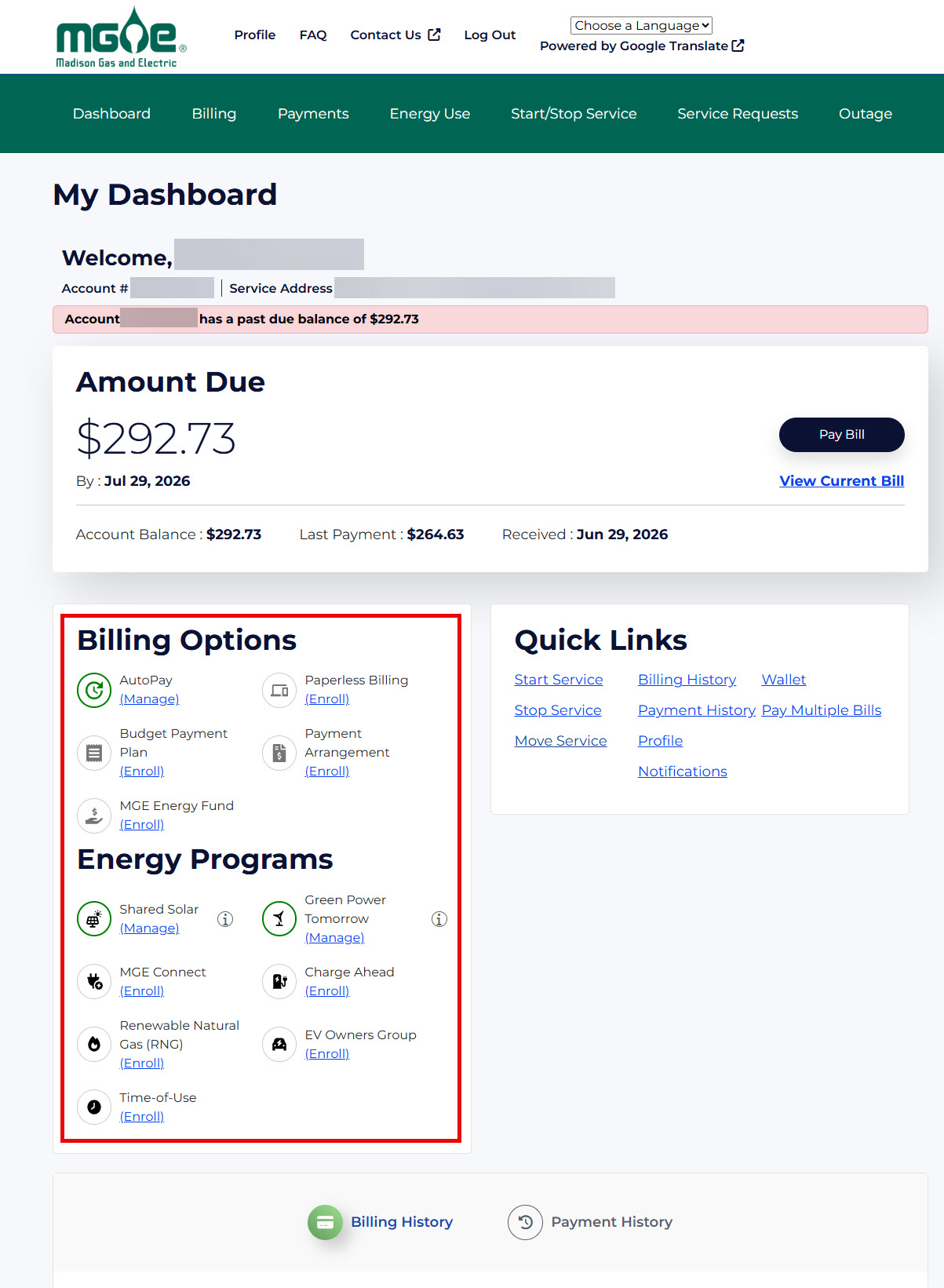
In the new My Account you will be able to sign up for the following optional MGE programs:
- Billing Options: AutoPay, Budget Payment Plan, Paperless Billing, Payment Arrangement and MGE Energy Fund contributions
- Energy Programs: Green Power Tomorrow, Shared Solar, Renewable Natural Gas (RNG), MGE Connect, Charge Ahead, EV Owners Group
Note that not all programs are available for enrollment or management in My Account. To learn about all optional MGE programs—including bill and payment programs, renewable energy programs, EV programs and energy use programs—visit mge.com.
General
No, MGE is not offering a mobile app. The new My Account is a secure, web-based platform, designed to work well on a smartphone or tablet and does not require a separate download. All you need is access to the Internet!
Yes! There will be no changes to how you report outages to MGE. Our outage map and outage reporting tools will remain the same.
You will still be able to start, stop or change your MGE service online, too. We’ve simply made this process more efficient by integrating it into the new My Account system. You also will be able to sign up for My Account immediately after completing a start service request online.
Yes! The following enhancements are available in the new system:
- You can schedule and manage some service appointments, such as meter maintenance or replacements.
- You’ll see MGE programs you’re enrolled in on your My Dashboard page.
- For added security, you can opt to enable two-factor authentication when logging in.
- Customers can now sign up for My Account immediately after completing a start service request online. Previously, customers had to wait for their welcome letter or first bill to sign up for My Account.
- Customers having trouble paying their MGE bill can now sign up for a Payment Arrangement in My Account. Previously, customers were required to call us to set this up.
After logging in to the new My Account, you will see your current amount due, along with your last payment, on your My Dashboard page.
To see the PDF of your current bill, select the “View Current Bill” link.
To see your billing history, select the “Billing History” option in the Billing tab or in your Quick Links window.
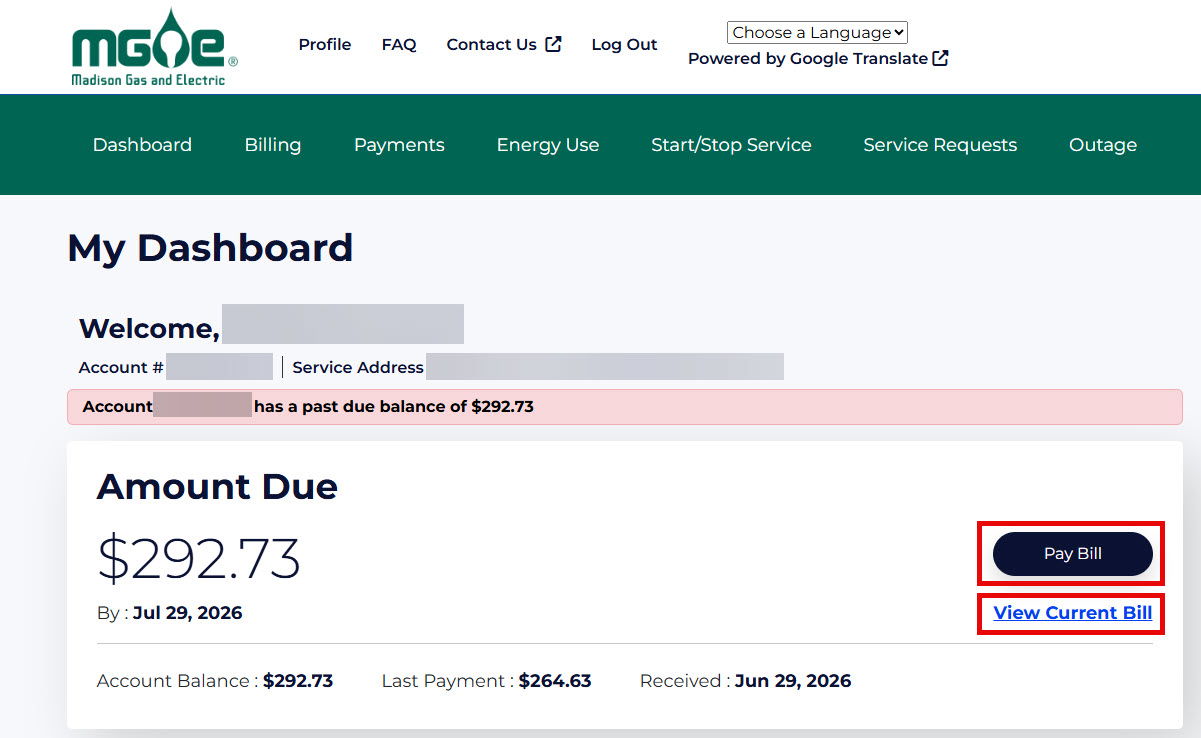
After logging in to the new My Account, your My Dashboard page will display.
If your accounts are already added to your My Account profile, you will see them on your Multiple Accounts page after logging in. From there, you can see the account balance and due date, view the bill, make a payment and more for each account. You also may pay multiple bills with one payment by selecting the “Pay Multiple Bills” button.
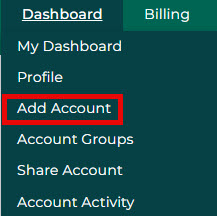
To add accounts to My Account, go to the “Add Account” link in the Dashboard tab and follow the prompts. Your added accounts will then display on your Multiple Accounts page after logging in to My Account.
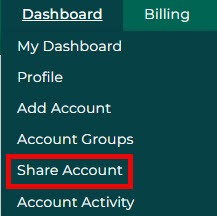
Yes! You can allow others access to your account by clicking “Share Account” in the Dashboard tab. Then enter the person’s name and email address and select the level of access you’d like them to have (Make Payments Only, Read Only or Full Access).
Business Customers
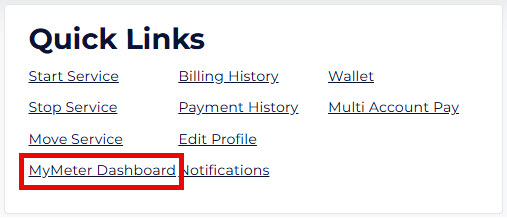
Yes! After you sign in, you can find a link to MyMeter in the Quick Links section of your Dashboard page.
If multiple people in your organization use My Account, this may be a good opportunity to review who currently has access and confirm the primary email address associated with the account is current and monitored.
If your accounts are already added to your My Account profile, you will see them on your Multiple Accounts page after logging in. From there, you can see the account balance and due date, view the bill, make a payment and more for each account. You also may pay multiple bills with one payment by selecting the Pay Multiple Bills button.
To add accounts to My Account, go to the “Add Account” link in the Dashboard tab and follow the prompts. Your added accounts will then display on your Multiple Accounts page after logging in to My Account.
You can allow others access to your accounts by clicking “Share Account” in the Dashboard tab. Then enter the person’s name and email address and select the level of access you’d like them to have (Make Payments Only, Read Only or Full Access). You will need to complete this step for each account that you’d like to share with the user.
